> ## Documentation Index
> Fetch the complete documentation index at: https://docs.hextrade.io/llms.txt
> Use this file to discover all available pages before exploring further.
# Trading Accounts
> Connect your broker accounts to Hextrade. Supports ProjectX, Tradovate, NinjaTrader, Tradier, Oanda, DxTrade, Alpaca, CQG, and more.
# Trading Accounts
To start automated trading, copy trading, or webhook-based algorithmic trading, you first need to **connect a broker account** to Hextrade. Once connected, your account appears in the accounts table and is available for algorithms, copy groups, and manual trading.
***
## Adding an Account
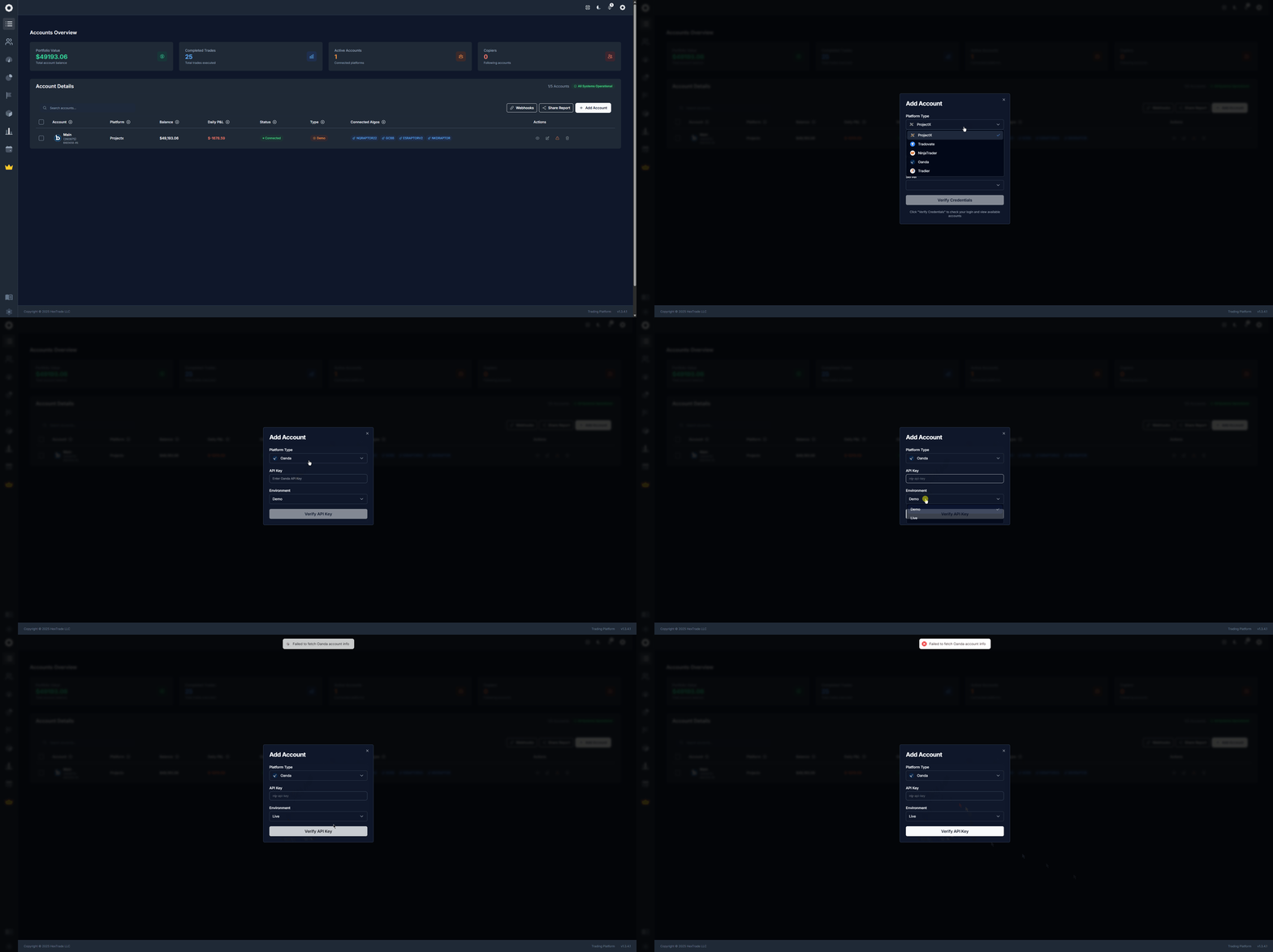
Go to [**Hextrade Accounts**](https://dash.hextrade.io/accounts) and click **"Add Account"**.
Choose your broker or prop firm from the supported platforms list (see below).
Enter the credentials or API keys provided by your broker or prop firm. Each platform has slightly different required fields.
Once submitted and verified, the account appears in your accounts table — ready to manage.
 ***
## Supported Platforms
Hextrade supports a growing list of brokers and prop firms:
Prop trading platform with full futures support. Webhooks, algorithms, and copy trading supported.
Futures and trading platform. Full algorithm and copy trade integration.
Popular futures and forex platform. Connect and run automated strategies.
Equities and multi-leg options. Market, limit, stop, stop-limit; day and GTC orders.
Forex and CFDs. Connect and trade currency pairs with algorithms.
Multi-asset platform with full dashboard integration.
Commission-free equities API. Fast, developer-friendly connectivity.
Futures and derivatives connectivity. Industry-standard market data.
More platforms are added regularly. Join the [Discord server](/other-features/discord) to request a new integration or check what's coming.
***
## Platform Comparison
| Platform | Asset Class | Algorithm Support | Webhook Support | Copy Trade |
| --------------- | --------------------- | ----------------- | --------------- | ---------- |
| **ProjectX** | Futures | | | |
| **Tradovate** | Futures | | | |
| **NinjaTrader** | Futures / Forex | | | |
| **Tradier** | Equities / Options | | | |
| **Oanda** | Forex / CFDs | | | |
| **DxTrade** | Multi-asset | | | |
| **Alpaca** | Equities | | | |
| **CQG** | Futures / Derivatives | | | |
***
## ️ Account Limits
The number of accounts you can connect depends on your **subscription plan**:
* **Free / Beta** — Up to 20 accounts
* **Upgraded plans** — Higher limits available
* **Unlimited accounts** — Available on select plans
If you reach your limit, the dashboard will notify you. Manage plans from [Subscriptions](https://dash.hextrade.io/subscriptions).
Always use API keys or credentials specific to the Hextrade integration. Do **not** share your main broker login password — use API access tokens where possible.
***
## What to Do Next
Once your account is connected, you can:
Browse and activate algorithms on your connected account.
Use this account as master or follower in a copy-trade group.
Use your own TradingView strategy to drive trades on this account.
Analyze this account's performance, P\&L, and trade history.
***
## Supported Platforms
Hextrade supports a growing list of brokers and prop firms:
Prop trading platform with full futures support. Webhooks, algorithms, and copy trading supported.
Futures and trading platform. Full algorithm and copy trade integration.
Popular futures and forex platform. Connect and run automated strategies.
Equities and multi-leg options. Market, limit, stop, stop-limit; day and GTC orders.
Forex and CFDs. Connect and trade currency pairs with algorithms.
Multi-asset platform with full dashboard integration.
Commission-free equities API. Fast, developer-friendly connectivity.
Futures and derivatives connectivity. Industry-standard market data.
More platforms are added regularly. Join the [Discord server](/other-features/discord) to request a new integration or check what's coming.
***
## Platform Comparison
| Platform | Asset Class | Algorithm Support | Webhook Support | Copy Trade |
| --------------- | --------------------- | ----------------- | --------------- | ---------- |
| **ProjectX** | Futures | | | |
| **Tradovate** | Futures | | | |
| **NinjaTrader** | Futures / Forex | | | |
| **Tradier** | Equities / Options | | | |
| **Oanda** | Forex / CFDs | | | |
| **DxTrade** | Multi-asset | | | |
| **Alpaca** | Equities | | | |
| **CQG** | Futures / Derivatives | | | |
***
## ️ Account Limits
The number of accounts you can connect depends on your **subscription plan**:
* **Free / Beta** — Up to 20 accounts
* **Upgraded plans** — Higher limits available
* **Unlimited accounts** — Available on select plans
If you reach your limit, the dashboard will notify you. Manage plans from [Subscriptions](https://dash.hextrade.io/subscriptions).
Always use API keys or credentials specific to the Hextrade integration. Do **not** share your main broker login password — use API access tokens where possible.
***
## What to Do Next
Once your account is connected, you can:
Browse and activate algorithms on your connected account.
Use this account as master or follower in a copy-trade group.
Use your own TradingView strategy to drive trades on this account.
Analyze this account's performance, P\&L, and trade history.